
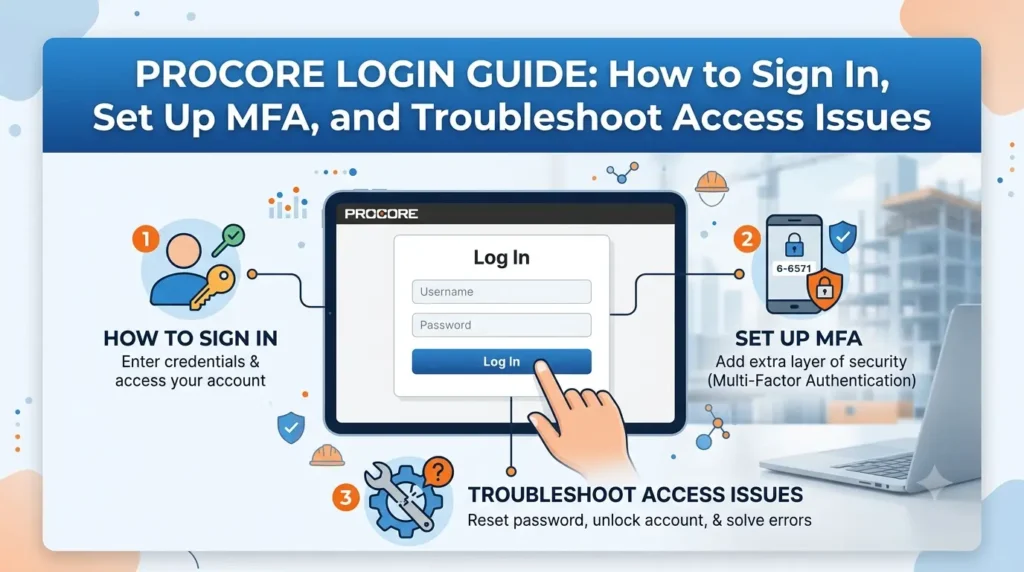
Procore Login Guide: How to Sign In, Set Up MFA, and Troubleshoot Access Issues.
Introduction
Understanding Procore Account Creation & Permissions
[ Company Administrator ]
       │
       ▼ (Adds email to Directory)
[ Automated "Welcome to Procore" Invitation Email ]
       │
       ▼ (Click link & create password)
[ Active Procore User Account ]
The “Welcome to Procore” Invitation
@procoretech.com) containing a setup link. If you do not see this email, check your spam or junk folder before contacting the firm’s administrator.How to Log In to Procore Web Application
Step-by-Step Web Login Process
-
Navigate to the Portal: Open your browser and go to
[https://login.procore.com](https://login.procore.com)or[https://app.procore.com](https://app.procore.com). -
Enter Email: Type the exact email address associated with your invitation and click Continue.
-
Authentication:
-
Standard Password: Enter your Procore password and click Sign In.
-
Single Sign-On (SSO): If your company uses enterprise identity management (e.g., Okta, Azure AD, Ping Identity, Duo), the system will automatically redirect you to your company’s custom identity provider portal.
-
-
Multi-Factor Authentication (MFA): If enabled, complete your security prompt using your preferred authenticator app or SMS code.
-
Select Portfolio/Company: If your email is tied to multiple construction companies or project portfolios, choose the desired company directory from the selection screen.
Logging In via Procore Mobile (iOS and Android)
How to Sign In on Mobile
-
Download the official Procore app from the Apple App Store or Google Play Store.
-
Open the app and tap Log In.
-
Enter your account email address and tap Continue.
-
Enter your password or proceed through your company’s SSO authentication screen.
-
Grant necessary permissions (e.g., Camera, Location Services) to allow field updates to sync with the cloud.
Multi-Factor Authentication (MFA) & Enterprise SSO Setup
┌─────────────────────────────────────────────────────────────┐
│                      PROCORE LOGIN METHODS                  │
├──────────────────────────────┬──────────────────────────────┤
│    Standard Login + MFA     │     Enterprise SSO (IdP)    │
├──────────────────────────────┼──────────────────────────────┤
│ 1. Enter Email               │ 1. Enter Work Email          │
│ 2. Enter Procore Password    │ 2. Redirected to Enterprise  │
│ 3. Authenticator Code / SMS  │    Portal (Okta / Azure)    │
│ 4. Access Granted            │ 3. Authenticate via Org Policy│
│                              │ 4. Access Granted            │
└──────────────────────────────┴──────────────────────────────┘
Setting Up Procore MFA
-
Log in to
[https://login.procore.com](https://login.procore.com). -
Choose your preferred verification method: Authenticator App (e.g., Google Authenticator, Microsoft Authenticator) or SMS Verification.
-
Scan the displayed QR code with your authenticator app or enter your mobile phone number.
-
Input the generated 6-digit code to complete the verification.
-
Save Your Recovery Code: Procore generates a 32-digit emergency recovery code. Store this code in a secure location. If you lose your phone, this is the primary way to regain access.
Accessing Procore as a Subcontractor or Specialty Contractor
Managing Multiple Companies under One Email
-
Upon logging in, Procore presents a Company Selector dropdown.
-
Choose the specific General Contractor or project ecosystem you need to view.
-
To switch accounts while inside Procore, click the company logo/selector in the top header and pick a different project directory.
Common Procore Login Errors and How to Fix Them
| Issue / Error Message | Root Cause | Solution |
| “Invalid Email or Password” | Typo or expired password | Re-type credentials carefully. Click Forgot Password? to trigger a reset email. |
| “The time on your device is different from our servers” | Out-of-sync system clock on mobile/PC | Go to your device’s settings and toggle Set Time Automatically to ON. |
| “User Not Found” / No Invite | Email not in Company Directory | Contact the GC’s Procore Administrator to verify the invitation was sent to the correct address. |
| SSO Redirect Loop | Expired identity session or browser cache | Clear browser cache/cookies, open an Incognito/Private window, or sign into your organization’s VPN. |
| Lost MFA Phone / Authenticator | Missing 2FA access | Use your saved 32-digit recovery code, or contact your company’s Procore Admin to reset your MFA. |
| Missing Projects / Grayed Out Tools | Insufficient user permissions | Ask the Procore Admin to update your permission template for that specific project. |
Best Security Practices for Procore Users
-
Never Share Credentials: Procore licenses are tied to individual identity. Shared logins violate security protocols and obscure audit trails for submittals and sign-offs.
-
Password Policy: Use strong passwords featuring a minimum of 8 characters, upper and lowercase letters, numbers, and special symbols.
-
Public Computer Safety: Always uncheck the “Remember Email” box when using shared field kiosks or public computers, and log out explicitly at the end of every session.
Conclusion & Next Steps
How do I log in to Procore for the first time?
Open the official login page and enter your registered email address. Follow the prompts to authenticate with your password or company SSO, then complete MFA if required. You may need an invitation or account created by your organisation.
How do I reset my Procore login password?
To reset your password, navigate to [https://login.procore.com](https://login.procore.com) and click the Forgot Password? link. Enter your registered email address to receive a reset link via email. Follow the instructions in the email to create a new password.
What should I do if I am locked out due to MFA?
If you are locked out because you changed or lost your mobile device, enter the 32-digit backup recovery code generated during setup. If you do not have your recovery code, contact your company’s Procore Administrator. They can reset your MFA settings from the backend so you can register a new device.
Can I log in to Procore without an internet connection?
Yes, you can sign in to the Procore Mobile app while online and switch to offline mode when working in locations with poor connectivity. The app caches project data locally and automatically syncs changes, photos, and daily logs back to the cloud once network access is restored.
How do I switch between different companies in Procore?
If your email address is linked to multiple projects or firms, click on the company dropdown menu in the top left corner of the Procore web interface. Select the company directory you wish to view from the list to toggle between workspaces instantly.